
Yes, you can use WhatsApp Business on a PC by linking your phone account to a browser or desktop app. If you handle customer questions while working at a computer, answering messages on a larger screen can save time and make everyday tasks easier. You can choose quick browser access or install an app for a dedicated work computer. This guide helps you choose the option that fits your routine and understand what to expect when you work from a computer.
Key Takeaways
- Use WhatsApp Business Web for access through a browser.
- Install WhatsApp Desktop for a dedicated computer app.
- Register and verify your account on a phone first.
- Use the same account identity on your linked computer.
- Consider the Platform if your team needs more advanced workflows.
A computer makes typing and sharing files easier, while the phone remains the account’s primary device.
Does WhatsApp Business Work on PC?
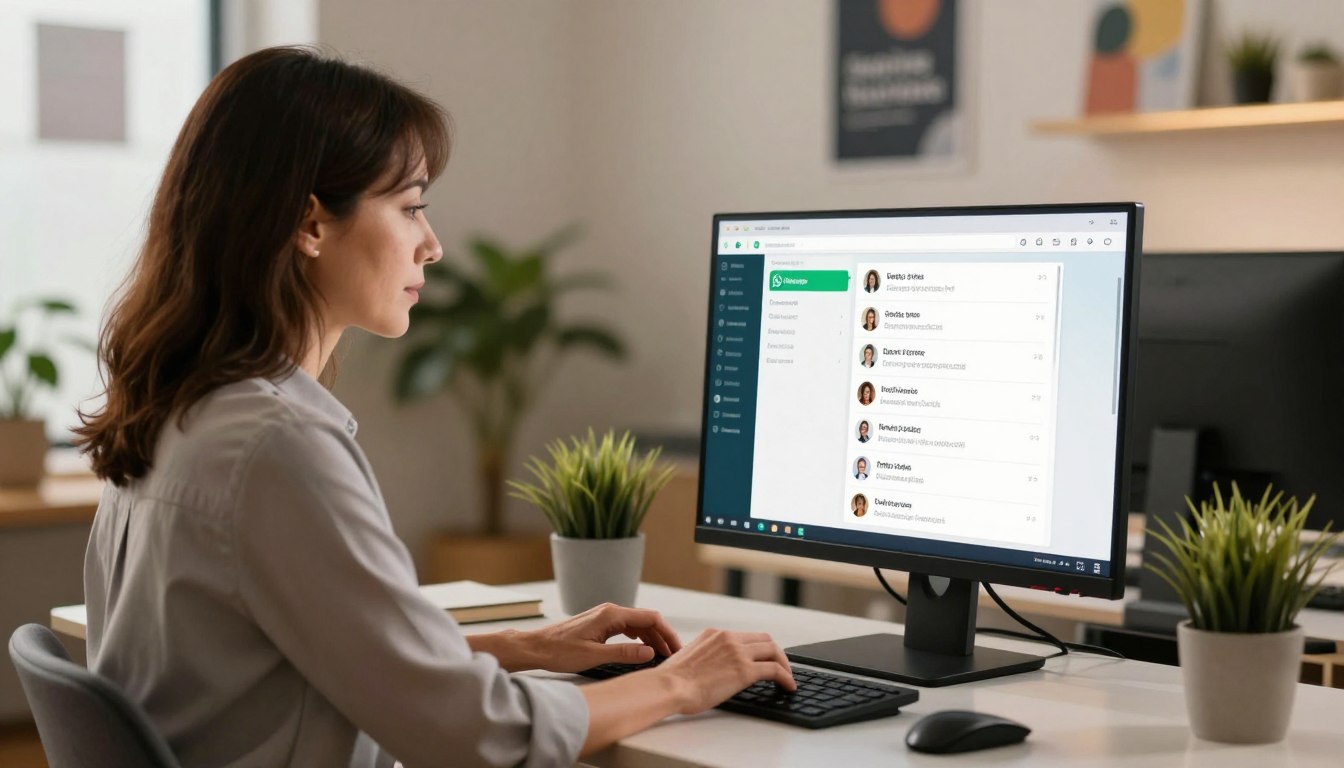
Yes, WhatsApp Business works on a PC when you link the computer to the account on your phone. A linked device is a companion computer or other device connected to your account without registering a new primary phone. It gives you computer access to the same business account, not a second identity.
One primary phone can have up to four linked devices in 2026. Those devices can include a browser, desktop app, tablet, or companion phone. You can use WhatsApp Business from a computer while keeping your business identity and customer conversations associated with the account registered on your phone.
That arrangement does not replace the phone used to register the business account. The computer is an additional way to use WhatsApp, while the primary phone remains tied to the account. The four-device limit gives a small business room to connect a work computer and a few other devices.
Linked devices log out automatically if the primary phone stays offline for more than 14 days.
For a solo owner, that setup can keep customer messages close while you handle invoices, product details, or other work on the same screen. You do not need to create a separate computer account to reply as your business. Chats stay connected to the business account’s identity.
Keep the primary phone in use, since linked devices log out after it stays offline for more than 14 days.
WhatsApp Business Web vs. the Desktop App: Which Should You Choose?
Use WhatsApp Business Web for quick browser access, or install WhatsApp Desktop if you prefer a dedicated computer app. Web is simplest when you only need occasional access or cannot install software. The desktop app fits a computer you use regularly for customer communication.
Both options connect to the same phone account, and the computer app is WhatsApp Desktop, not a separate WhatsApp Business-branded app. The table compares where each option opens, whether installation is needed, and its system requirement.
| Option | Where it opens | Installation | System requirement |
|---|---|---|---|
| Web | Browser at web.whatsapp.com | No installation | Modern browser |
| Windows app | Installed desktop app | Installation required | Windows 10 or newer |
| Mac app | Installed desktop app | Installation required | macOS 12.1 or newer |
WhatsApp Business Web opens in a modern browser, so it is handy on a computer where you do not have permission to install programs. It can also be a practical choice when you switch between computers and want to avoid a separate installation on each one.
Choose the desktop app for a dedicated work computer. A separate app window can sit beside your email, inventory, or scheduling software. If you are deciding whether WhatsApp Business works on a PC with Windows 10, the Windows app supports Windows 10 or newer.
The Windows 11 version is supported too, because Windows 11 is newer than Windows 10. The Mac desktop app needs macOS 12.1 or newer. In either case, the installed option is WhatsApp Desktop, even when you use it for a business account.
On a Windows 10 or newer PC or a Mac running macOS 12.1 or newer, either route can provide computer access.
What Do You Need Before Linking a Business Account?
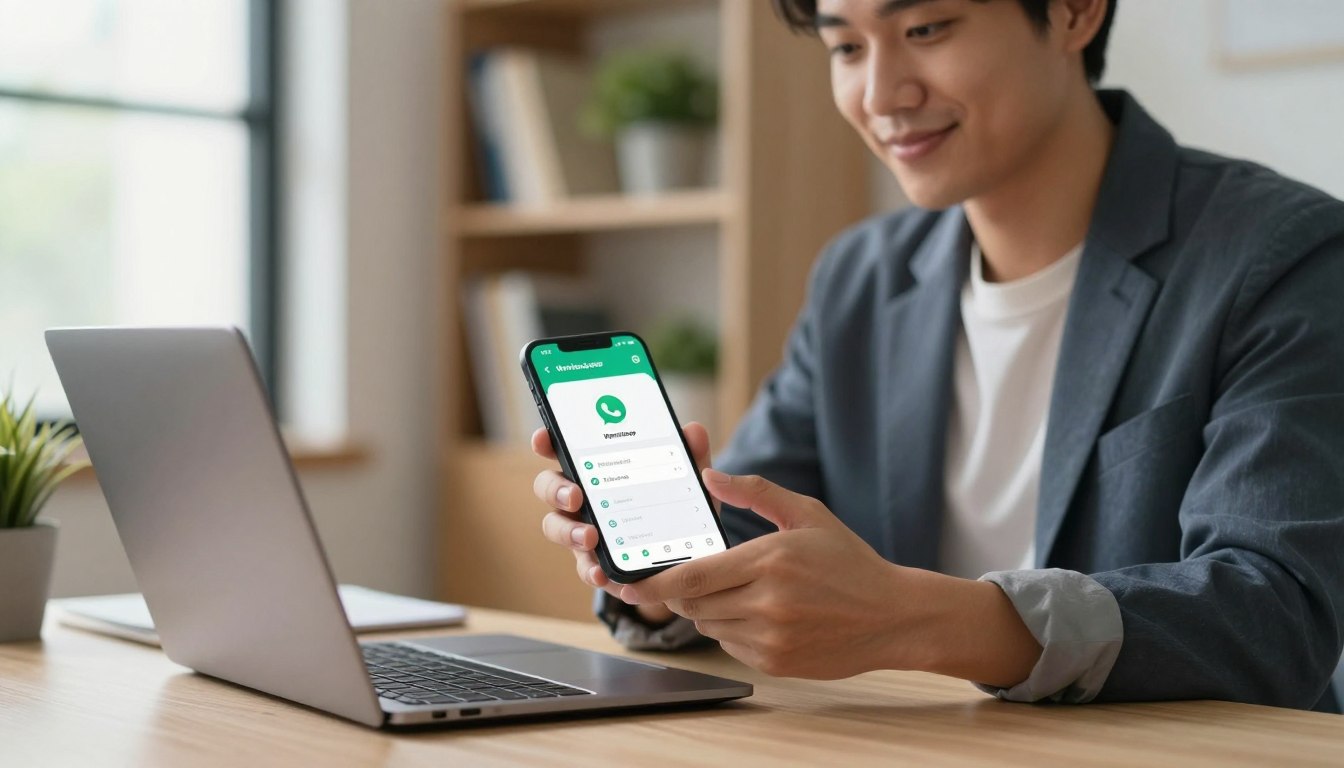
Before you link a computer, install WhatsApp Business on a phone and finish number verification. The phone account comes first, because the computer connects to an existing business account rather than creating one. You will need access to a phone number that can receive a verification text or call.
WhatsApp Business setup requires a phone number with a country code and verification by text message or phone call. Get the account ready on your phone before opening the computer version. This also clears up a common download mix-up for owners setting up a new account.
Install and prepare the mobile app
The WhatsApp Business app is free in the Google Play Store and Apple App Store in 2026. Register and verify the account on a phone before linking a computer. A WhatsApp Business download for PC from the Play Store is not a PC download: the Play Store app is for Android phones.
On a computer, use WhatsApp Business Web or WhatsApp Desktop instead. Also, WhatsApp Messenger and WhatsApp Business cannot use the same phone number at the same time. If you need that number for your business account, plan which app will use it.
Choose a number you can verify
Use a number you control, with its country code, and complete the verification step on the phone. You may receive a code by text or by phone call. A number you cannot access can prevent account setup, even if it belongs to your business on paper.
- Install the WhatsApp Business mobile app.
- Enter a phone number with its country code.
- Complete SMS or phone-call verification.
Use a number you control and can receive a verification text or call on.
How to Set Up WhatsApp Business on a PC
The quickest setup is to open web.whatsapp.com and scan its QR code from your phone. Choose the access route you already selected, then link it to your verified business account. The same phone menu connects WhatsApp Business Web and WhatsApp Desktop.
Keep the phone with your account nearby, because it must scan the code shown on the computer. Follow the computer setup in this order, whether you use a browser or installed app.
- Open the browser or installed app on the computer.
- Display the QR code on the computer screen.
- Open Linked Devices in the WhatsApp Business app on your phone.
- Tap Link a Device and scan the displayed code.
- Wait for your chats to sync on the computer.
Link WhatsApp Business Web in a browser
Go to web.whatsapp.com in your browser. Open WhatsApp Business on the phone, choose Linked Devices, and tap Link a Device. Point the phone camera at the QR code shown in the browser, then wait for the account to connect.
Once the chats appear, you can reply from the browser without installing software. If the code does not appear, reload the page and make sure the browser has finished loading. Keep the browser open during the linking process so the code remains visible.
Link WhatsApp Desktop on Windows
Download WhatsApp Desktop from the official WhatsApp download page or your computer’s official app store. Open the app and use the same Linked Devices and QR scan process. The account is accessed through WhatsApp Desktop on Windows 10 and Windows 11.
A WhatsApp Business download for PC with Windows 10 or Windows 11 means installing WhatsApp Desktop, then linking the business account. Do not try to install the Android app from Google Play on a PC. The Windows download is the computer app, not the phone version.
Link WhatsApp Desktop on a Mac
Download WhatsApp Desktop from the official WhatsApp download page or the Mac’s official app store. Open it, display its QR code, and scan that code using Linked Devices on the phone. The account then loads into the Mac desktop app.
After linking, open a recent customer conversation and confirm that its messages are present. This quick check helps you catch a stalled sync before you depend on the computer for replies. Confirm that the chats have appeared on the computer before closing the setup screen.
What Can You Do From WhatsApp Business on Desktop?
A linked computer lets you handle everyday replies and use several WhatsApp Business tools without typing on a phone screen. It works well for routine communication: you can read and answer customer chats while keeping other work open. Typing long replies on a full keyboard can be more comfortable than using a phone.
WhatsApp Business Web supports business profiles, quick replies, automated greetings and away messages, and contact labels. These tools help you present basic business details and organize conversations. On a computer, you can also share files and keep customer communication beside documents, calendars, or order records.
Quick replies let you save text for common questions, such as store hours or return instructions. There can be up to 50 quick replies per account, and a person must still choose and send each one. They are prepared messages, not replies that send themselves when a customer writes.
Automated greetings and away messages can respond in set situations, but they do not replace a person handling a conversation. The distinction matters when a customer has a specific order problem or needs an answer that does not fit a saved response. Check the chat before sending a reply.
Broadcasts work differently from one-to-one chat. They are created through the mobile app, can reach up to 256 contacts, and only reach recipients who have saved the business number. Each recipient gets the same message, with no personalization variables.
WhatsApp Business Web’s supported tools include labels and saved responses, but the app has no send-later scheduling feature. If you need a seasonal message to go out at a particular hour, you must send it yourself at that time. A draft or quick reply is not a scheduled message.
For a small shop, the computer can make it easier to answer a shipping question while checking the order details in another window. A service provider can keep customer chats visible while preparing a quote. Treat quick replies as saved text for a person to send, not as an automatic response system.
What Limits Will a Shared WhatsApp Business Account Have?
A shared WhatsApp Business account can suit one person, but its tools do not identify each team member’s replies. One person can manage chats from a computer and keep customer conversations in view while handling other tasks. The account still presents one business identity across its linked devices.
Linked devices share one identity, with no individual agent logins, chat assignments, or record of who replied. That makes a basic business account straightforward for an owner who handles messages alone. It becomes harder to coordinate when several employees answer from separate computers.

What one person can manage
If you answer every customer yourself, you can use the desktop app to keep chats visible while working through your day. You can respond from the computer and move between conversations without picking up your phone for every message. A single person also knows which replies they sent.
That setup may work for a small business with one person responsible for customer communication. You can decide which chats need a reply and follow up from the same account identity. The trouble starts when responsibility passes between people without a way to mark ownership.
Where a team will feel the gaps
WhatsApp Business Web does not integrate with a CRM or third-party tools. The app also lacks a shared inbox with chat assignment or ownership, and it does not provide campaign delivery or reply analytics.
For example, two staff members replying from linked computers cannot reliably see who owns a chat or who sent the last response. One employee might answer a delivery question while another believes it remains open. The business has no per-agent login or reply history to settle the confusion.
A team that tracks leads, follow-ups, or service work may need clearer ownership than the basic account provides. Without campaign reporting, managers also cannot use the app to review delivery and reply results across a campaign. Those gaps matter more as several people share responsibility for the same customers.
If your team needs clear chat ownership or response reporting, the basic shared account will not provide it.
When Does the WhatsApp Business Platform Make Sense?
A business that needs team workflows or integrations beyond the basic app may consider the WhatsApp Business Platform. The Platform is not a standalone inbox; you access it through a communications platform, and its tools depend on the provider you choose. It can suit a business that needs capabilities beyond the regular app.
Before choosing a number or service, check that the number meets the Platform’s registration rules. The number must be owned by the registrant, include a country and area code, and receive an SMS or voice call. Short codes are not supported.
Check the number requirements first
Use these four checks before committing to a number:
- Own the number you plan to register.
- Use a number with a country code and area code.
- Make sure it can receive SMS or a voice call.
- Avoid short codes, which are not supported.
A number already used with WhatsApp cannot be registered for the Platform unless you delete it from WhatsApp first. The Platform number also needs a two-step verification PIN. Mobile numbers are recommended for SMS one-time passcode delivery.
Fixed-line, freephone, and VoIP numbers are not recommended for SMS passcodes. Voice passcode delivery is listed as the standard option for those number types. Choose a number based on the verification route it can actually receive, not just its monthly price.
Compare U.S. virtual-number costs carefully
Listed U.S. virtual-number prices differ, and some providers charge separately for the number and the communications platform. Compare both charges before estimating the monthly bill. The examples below give a starting point for the listed plans.
| Provider | Number price | Platform price | Pricing condition |
|---|---|---|---|
| CloudTalk | $6 per number per month | Plans from $25 per user per month | Separate number and platform charges |
| Quo | About $5 per extra number | Plans from about $15 per user per month | Extra-number price |
| Grasshopper | 1-5 numbers included | Plans from about $14 per user per month | Included number count varies by plan |
| Google Voice | No separate number price stated here | Plans from $10 per license | Google Workspace subscription required |
| Phone.com | 1 number included | Plans from $12.99 per user per month | Extra numbers cost more |
CloudTalk’s $6 number charge is separate from its per-user platform plan. AVOXI U.S. numbers start at $9.99, with usage-based or quote-based platform pricing. Global Call Forwarding U.S. numbers start at $7.95, with usage-based platform pricing.
These listed prices do not establish whether a specific number will pass WhatsApp verification. Confirm eligibility with the provider before choosing. Before paying for a virtual number, confirm that you own it and can complete the required verification.
How Do You Secure or Log Out of a Linked Computer?
Linked devices use end-to-end encryption, but you should still log out of any computer other people can access. Encryption protects messages in transit, while a signed-in session can still be open to someone using that computer. Keep shared and public workstations in mind when you finish a shift.
You can review and log out computer sessions from Linked Devices on your phone. Open WhatsApp Business, choose Linked Devices, select the computer session, and log out. This phone-based route lets you end access even when you are no longer sitting at the computer.
On a shared computer, log out before leaving your workspace. Do not rely on closing the browser window to end the account session. If you use a work computer with other staff, take a moment to confirm the account is no longer open.
Check for unfamiliar sessions and remove any computer you do not recognize.
Session names help you distinguish the computer you use for customer messages from an old workstation or a device you no longer control. Review the list when staff leave or when the business changes computers. Review the Linked Devices list periodically and remove sessions you no longer recognize or use.
Conclusion
For straightforward customer replies, linking WhatsApp Business to a PC is a practical way to work from a larger screen. WhatsApp Business Web suits quick access, while WhatsApp Desktop offers a dedicated computer app for regular use. Either can help an individual handle conversations alongside other business tasks.
Teams that need clear chat ownership or integrations should assess the Platform and its provider requirements. Match the option to who answers customers and how your business tracks their conversations. Start by linking the account on a computer you trust, then check that the right chats and tools are available for your workflow.
FAQ
How do I log out of WhatsApp Web?
Open Linked Devices on your phone, select the computer session, and log out. This ends the session from the account even if you have already left the computer. On a shared computer, log out before leaving the workstation, rather than relying on closing the browser window. You can also review connected sessions from the same phone menu.
Can I use WhatsApp Business without a phone number?
No, setting up the account requires a phone number with a country code and verification by text or call. You need access to that number during registration so you can receive the code. After the account is set up on a phone, you can link a computer for everyday messaging, but the computer does not remove the number requirement.
What are the disadvantages of a WhatsApp Business account?
The main disadvantages are one shared identity, no chat ownership or assignment, and limited team oversight. Staff cannot use individual agent logins or see a reliable record of who sent each reply. WhatsApp Business Web also lacks CRM integration, and the app does not provide campaign delivery or reply reporting. Those limits can make coordination harder as a team grows.
What is the cheapest virtual number for WhatsApp?
Quo lists extra U.S. virtual numbers at about $5, the lowest number price among the listed examples. That price alone does not show whether a number can pass WhatsApp verification. The business must own the number and be able to receive the required text or call. Compare any platform charge as well as the number price before choosing.
Can I get a free US number for WhatsApp?
A free U.S. number is not guaranteed to work with WhatsApp. The registrant must own the number and be able to complete the required verification by text or voice call. Some number types, including fixed-line, freephone, and VoIP numbers, are not recommended for SMS passcodes. Check the number’s verification options before relying on it for a business account.
Can someone fake a phone number on WhatsApp?
Someone cannot complete account setup for a number without access to its verification text or call. A business should use only a number it owns and can verify, rather than a number borrowed from another person or service. Keep verification codes private, since sharing a code can let someone else register the account using that number.
Does WhatsApp Business work on Windows 11?
Yes, WhatsApp Desktop works on Windows 11 and links to the phone account through a QR code. The Windows desktop app supports Windows 10 or newer, so Windows 11 meets its system requirement. Download WhatsApp Desktop for the computer, then scan its code using Linked Devices in the phone app.
If you want to dig further into what is network adapter on computer connectin, read our What is Network Adapter on Computer Connectin guide.
If you want to dig further into how to see another computer on same network f, read our How to See Another Computer on Same Network F guide.
If you want to dig further into how to find another computer on your network, read our How to Find Another Computer on Your Network guide.


 By
By